
 DwellClick User Guide
DwellClick Preferences
Clicking preferences
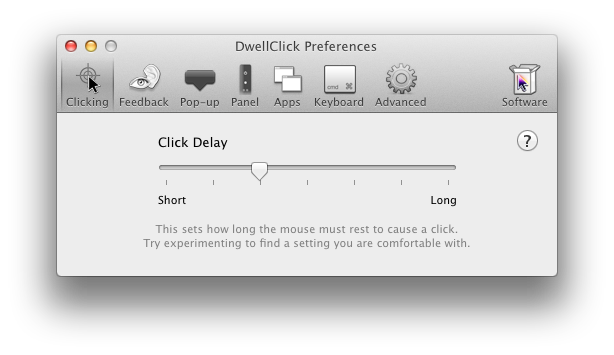
Click Delay: This sets how long DwellClick will wait to click after you stop moving the mouse. Experiment with this setting to find one that is right for you.
Feedback preferences
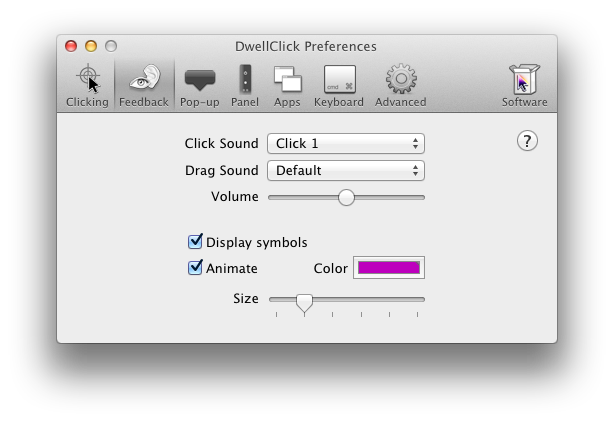
Click Sound and Drag Sound offer a choice of sounds for clicking and dragging. The sounds are designed to confirm your actions audibly, while being subtle and unobtrusive.
You can adjust the Volume of the sounds with the slider. To turn off either sound, select (no sound).
Display symbols controls whether the symbols for the selected modifier (see modifiers) and the next click (if it is a double-click or drag) are displayed above the mouse pointer.
Animate controls whether you see the animated flash around the mouse pointer. You can change the Color and Size of the animation.
Popup preferences
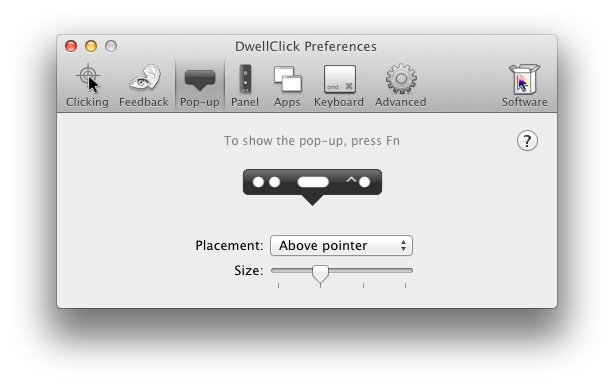
Placement allows you to choose whether the popup appears above or below the mouse pointer. The Size slider allows you to make the popup bigger or smaller. See popup panel.
Panel preferences
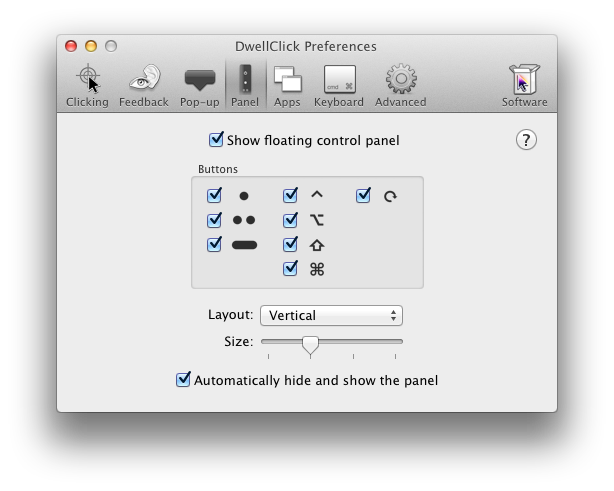
Show floating control panel sets whether to show the floating control panel.
The Buttons section lets you choose which buttons to show in the panel.
You can use the Layout selector to choose whether the panel is arranged vertically or horizontally. The Size slider makes the panel bigger or smaller.
When Automatically hide and show the panel is selected, the panel disappears when not in use, and reappears when you move the mouse near it.
Apps preferences
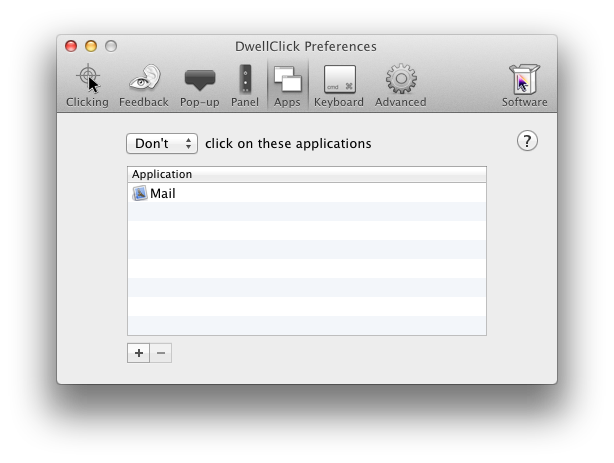
There may be some apps that you prefer not to use DwellClick with (for example, games or graphics packages). DwellClick keeps a list of blocked apps and will not click when you are using them.
You can select whether to block apps in the list (‘Don’t click on these applications’) or to block all apps except the apps in the list (‘Only click on these applications’).
To add an application to the list, click ’+’. To remove one, highlight it and click ’-‘.
If you hold the Option key (⌥) while clicking ’+’, it will directly add the currently active app.
Most applications are in the /Applications folder. System applications such as Finder and Dock are in /System/Library/CoreServices/.
Keyboard preferences
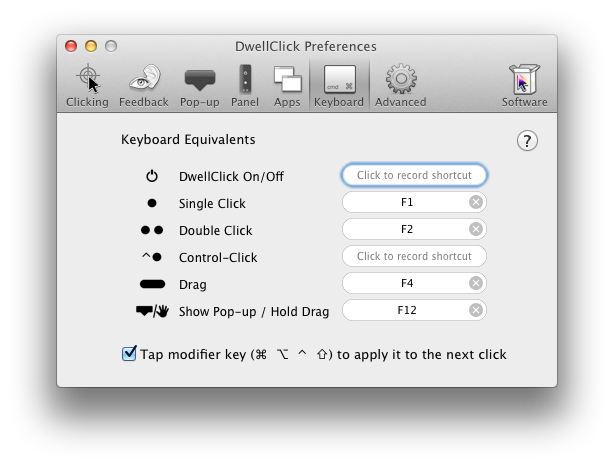
Keyboard equivalents can be set for the following actions:
- DwellClick On/Off
- Single-click, double-click and Control-click
- Drag. By pressing the key twice, you can hold the drag.
- Drag and Hold. Start a drag in the already held state.
- Show Popup. This allows you to set an alternative shortcut with the same effect as the Fn key.
Tip: To use the keys F1, F2 etc. as keyboard equivalents it may be necessary to select the ‘Use all F1, F2, etc. keys as standard function keys’ option in System Preferences, under Keyboard. 
Advanced preferences
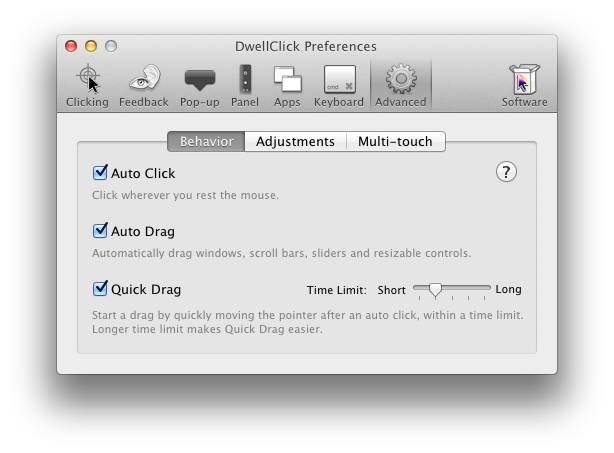
Auto Click: turn auto click on or off (see clicking).
Auto Drag: turn auto drag on or off (see auto drag).
Quick Drag: turn quick drag on or off, and set the time limit (see quick drag).
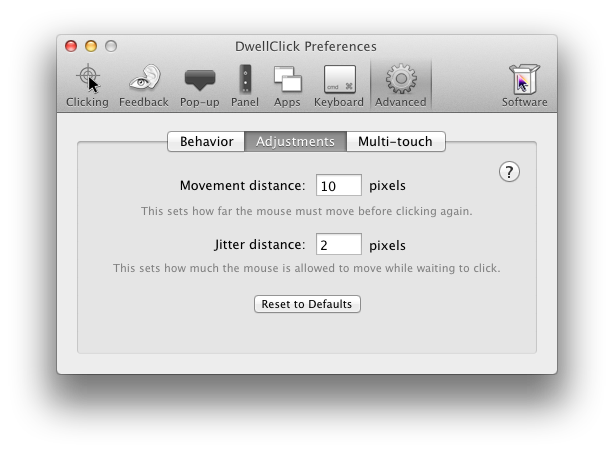
Movement Distance: This sets how far you must move the mouse after clicking for DwellClick to click again. This distance stops DwellClick from making an unwanted click if you only nudge the mouse pointer a little bit. The default is 10 pixels, and if you are unsure, just leave it at that.
Jitter Distance: This sets how much the mouse pointer can move about while waiting to click, without stopping the click from happening. Set a higher value if you have difficulty keeping the mouse pointer still. The default is 2 pixels.
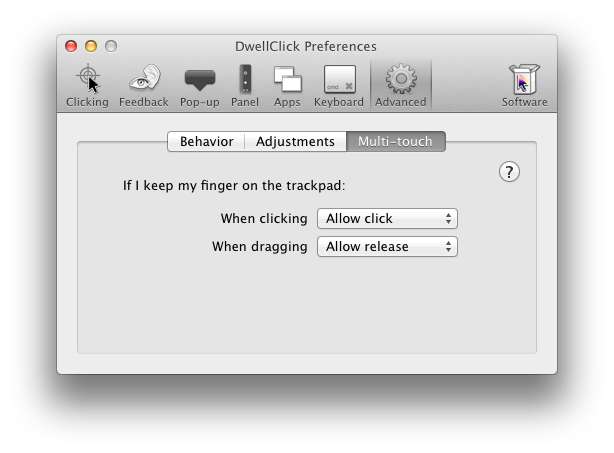
Multi-touch settings control how DwellClick behaves when you move the pointer using a multi-touch trackpad.
When using the trackpad: Choose how lifting or holding your finger on the trackpad affects clicking.
- Always click: DwellClick clicks normally after the pointer stops moving.
- Click only when I lift my finger from the pad: DwellClick clicks only after you lift your finger. Keeping your finger on the trackpad prevents the click.
- Click when I lift; show popup when I hold: lifting your finger performs a normal click, while keeping your finger on the trackpad shows the popup panel.
- Click only when I hold my finger on the pad: DwellClick clicks only while your finger remains on the trackpad.
When dragging using the trackpad: Choose how lifting or holding your finger affects the end of a drag.
- Always release the drag: DwellClick releases the drag normally when you stop moving.
- Release only when I lift my finger from the pad: DwellClick keeps dragging while your finger remains on the trackpad, and releases the drag when you lift your finger.
Software preferences
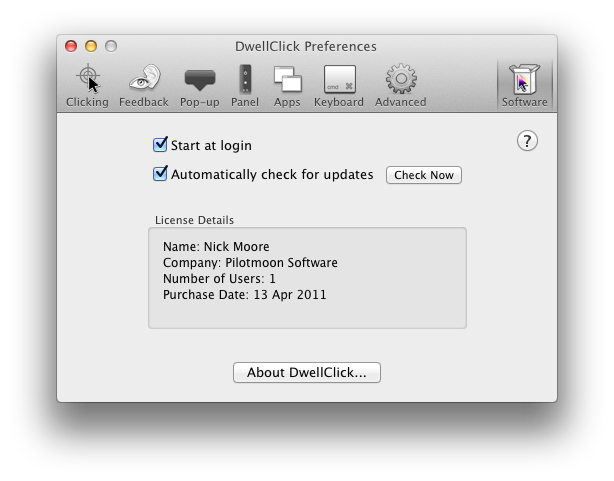
Start at login: Select this option if you want DwellClick to run automatically when you start your Mac.
Automatically check for updates: If new versions of DwellClick are available, you will be notified and given the option to download and install them automatically.
License Details: No longer shown. From version 2.3 onwards, DwellClick is free and open source.